Messaging
Travomate Cargo includes a built-in chat system so cargo owners, capacity providers, and platform staff can communicate directly within the platform, no external email or phone needed to close a deal or resolve an issue.
Messages are delivered in real time: both sides see new messages the instant they're sent, without refreshing the page.
Supported Message Types
| Type | Use Case |
|---|---|
| Text | Negotiating terms, asking questions, confirming details |
| Images | Sharing photos of cargo, packaging, or goods |
| Documents | Exchanging commercial invoices, packing lists, or contracts |
For formal shipment documents (e.g. Bill of Lading, customs forms), see Documents.
A message can also reply directly to an earlier message in the same thread, so a specific question and its answer stay visually linked even in a busy conversation.
How a Conversation Starts
There are two distinct ways a conversation comes into being today.
User-to-user, from an offer
A cargo owner or capacity provider starts a conversation by clicking "Request Shipment" or "Request Space" on someone else's listing (see Cargo Listings and Capacity Listings). This opens a direct, one-to-one thread with that listing's poster so the two sides can discuss terms, confirm logistics, and exchange documents.
Messaging is the foundation this sits on: the underlying conversation primitive (participants, messages, attachments, read state) is the same regardless of what surfaces it. As the quote → compare → accept offer flow (see Roadmap) comes online, accepting a proposal will be another entry point that opens or resumes a conversation between the two parties tied to that specific offer, using the same messaging building blocks described here.
Staff-initiated
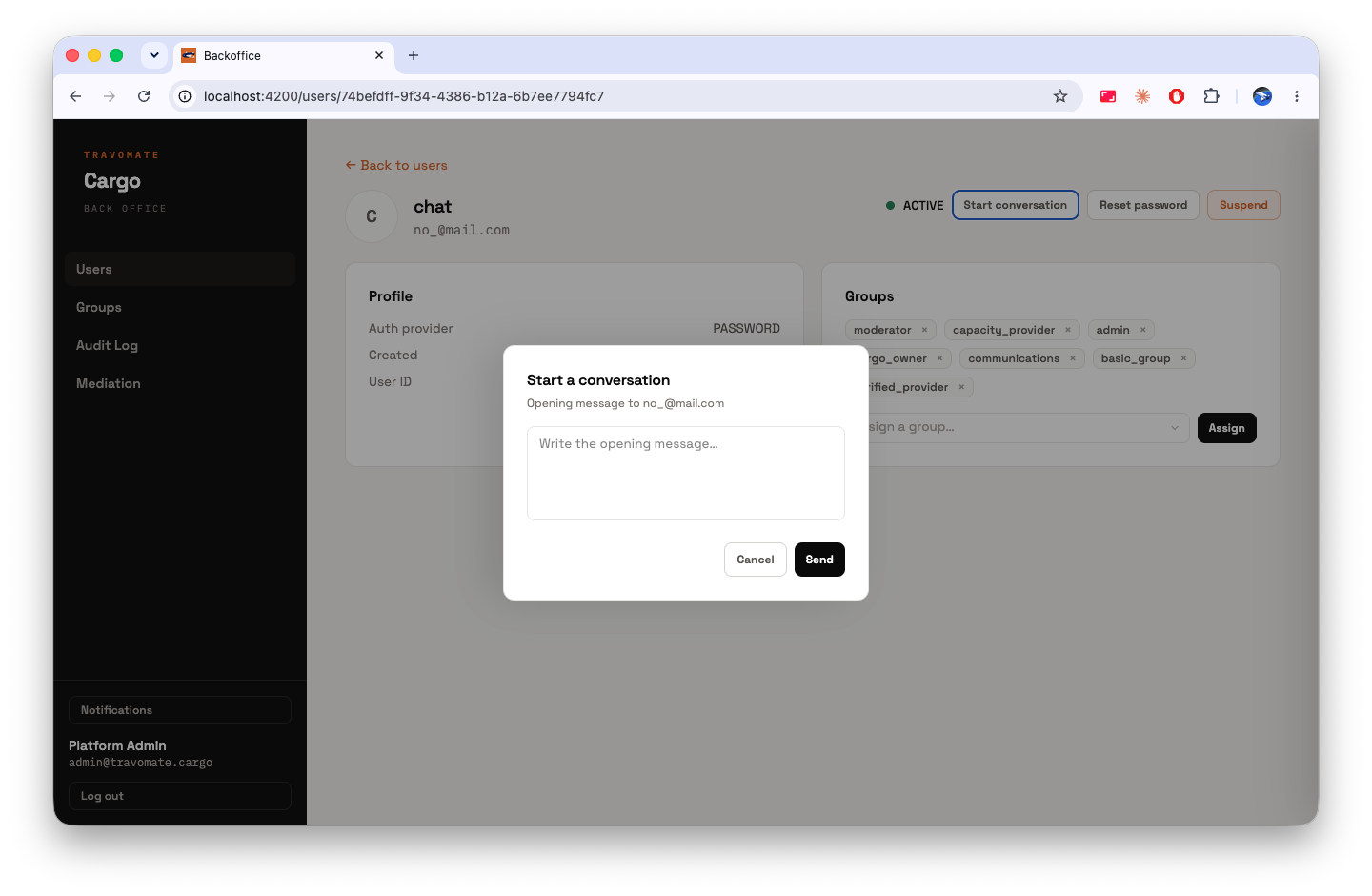
Platform staff (support, trust & safety, admins) can open a conversation directly with any user from that user's profile in the back office, for example to follow up on a verification issue or respond to a support request. This is a separate, permissioned action from the user-to-user path: only the moderator group (or an admin) can start one.
Keeping Track of What's Read
Each participant's read position in a conversation is tracked independently, so unread counts are personal to each user rather than a single shared "seen" flag on the thread.
Moderation and Disputes
Any conversation can be flagged for staff review, and staff can then step in much like a mediator would in an offline dispute. This is covered in detail in Mediation & Flagging.
Notifications
New messages generate a notification for every other participant in the conversation. See Notifications for how notifications are delivered, and Implementation for what's actually wired up today versus planned.
Keep communication on-platform
Using in-platform messaging creates a record of your agreement and helps resolve disputes if they arise. Avoid moving negotiations off-platform where possible.
For Developers
- Mediation & Flagging: how conversation moderation and dispute handling work
- Implementation: data model, permissions, real-time transport, and known gaps
- Mobile (Flutter): minimal client-side flow for a Flutter app